
Complete your Onboarding Form in the Nourish Provider Portal
Note: If you joined Nourish before December 1, 2025, your dashboard may show the Verifiable Onboarding Form task instead. In that case, you will complete your credentialing onboarding form through Verifiable. Please refer to this help center article for detailed instructions on completing the Verifiable form.
Complete Credentialing Onboarding Form & NPDB Self Query
There are two tasks you will need to complete for Verifiable:
Obtain an NPDB Self Query
Submit the Credentialing Onboarding Form
To ensure a smooth and timely credentialing process, please complete these tasks within three business days of your first day at Nourish. You do not need to wait for your Oregon license to be approved before completing the form—it can be submitted as soon as you receive it.
Access the Credentialing Onboarding Form:
You will find the form on your Credentialing Onboarding Checklist:
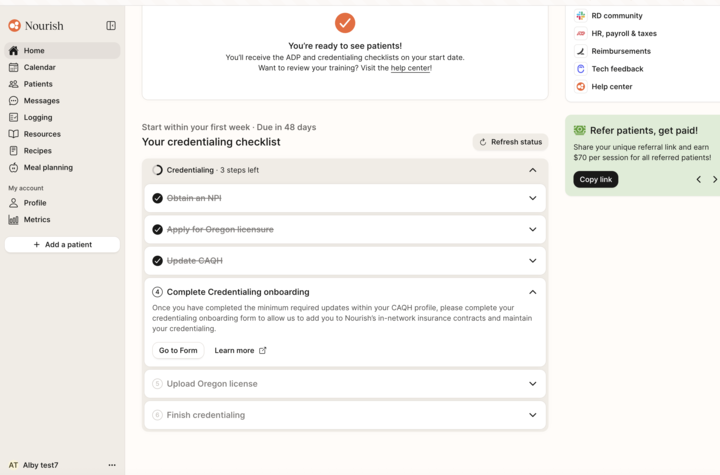
Complete Credentialing Onboarding Form:
If you are running into any unforeseen errors, please email credentialing@usenourish.com to help troubleshoot
Personal Information
Phone number
Date of Birth
Social Security Number
Mailing Address
Digital Signature
Board Certification: Add CDR number and expiration date.
Alias: If you have any other aliases, please enter them here.
CAQH: Provider your username, password, and ID. Please confirm these credentials are accurate and your profile has been completed and attested to. For more information on CAQH, check out: https://nourishonboarding.frontkb.com/en/articles/3254657
CAQH Permission: Check the box if you'd like to grant Nourish permission to make updates to your CAQH profile on your behalf, in accordance with CAQH guidelines and standards. If you would prefer to update CAQH individually, please leave the box unchecked.
Documents: Please upload a copy of your resume and NPDB Self-Query.
Submit!
Ordering an NPDB Self‑Query (Using ID.me to Sign In)
Why this matters
As part of your onboarding, you will submit an NPDB Self‑Query report along with your onboarding form. This is also a credentialing requirement every 180 days, so you may receive periodic emails from the credentialing team asking you to complete a new one.
Understanding ID.me and NPDB
When you order an NPDB Self‑Query, you’ll be asked to sign in with ID.me.
ID.me is just the login system NPDB uses to verify your identity.
ID.me and NPDB are separate. Creating or signing in to ID.me does not complete your Self‑Query.
After verifying your identity with ID.me, you still need to return to NPDB and finish ordering your Self‑Query.
Think of ID.me like signing in with Google or Facebook on another website—it’s only the login method. The actual NPDB order happens after you sign in.
Frequently Asked Questions
This NPDB Self‑Query and ID.me process seems like a lot. Do I really have to do all this?
Good news—we’ve got you covered! We created a step‑by‑step Scribe walkthrough with screenshots of every step, so you can just follow along without guessing.
Am I reimbursed for the $3 NPDB fee?
Yes. The $3 fee is reimbursable through Ramp. Follow this guide for reimbursement instructions.
What do I do with my NPDB report once I get it?
After you receive your NPDB Self-Query, upload the PDF as part of completing your Verifiable Onboarding Form under the Documents section.
Why did I get an email from XMS?
HHS‑XMS stands for Health and Human Services External User Management System. It’s part of the secure login process for ID.me. You just need to authorize it when prompted—it’s normal and required to access NPDB.
Do I need to create an ID.me account if I don’t have one?
Yes. Everyone logs in through ID.me. Even if you don’t have an account yet, click “Sign in with ID.me.” You’ll be able to create an account on the next page.
Quick Steps
Go to the NPDB Self‑Query page.
Click Sign In → Sign In to a Self‑Query Order.
Click Sign in with ID.me.
Sign in (or create an ID.me account) and complete identity verification.
After verifying, return to NPDB and click Start a New Order.
Select Personal as the search type.
Enter your personal, address, and professional details (including state license or CDR number).
Enter your NPI.
Pay the $3 fee (reimbursable through Ramp – see guide).
Submit your order and monitor the status.
Once available, click Show Me to download your report and upload the PDF as part of completing your Verifiable Onboarding Form under the Documents section.