
Submit Your Onboarding Form in Verifiable
The Verifiable Onboarding Form is a short online form completed through a Salesforce portal. During this process, you’ll upload:
Your NPDB report
Your resume
Your signature file
You’ll also provide your CAQH login information and select your opt-in status (whether Nourish updates your CAQH for you).
👉 Need a visual walkthrough?
Step 1: Watch for the Email
You’ll receive an email from Provider Onboarding that looks like this:
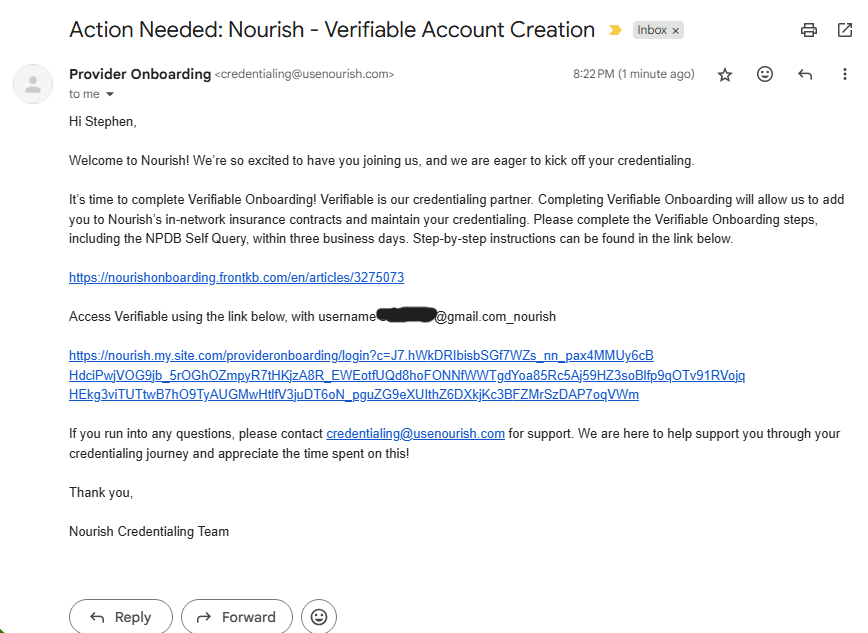
Note your username listed in the message.
Click the link in the email to access Verifiable.
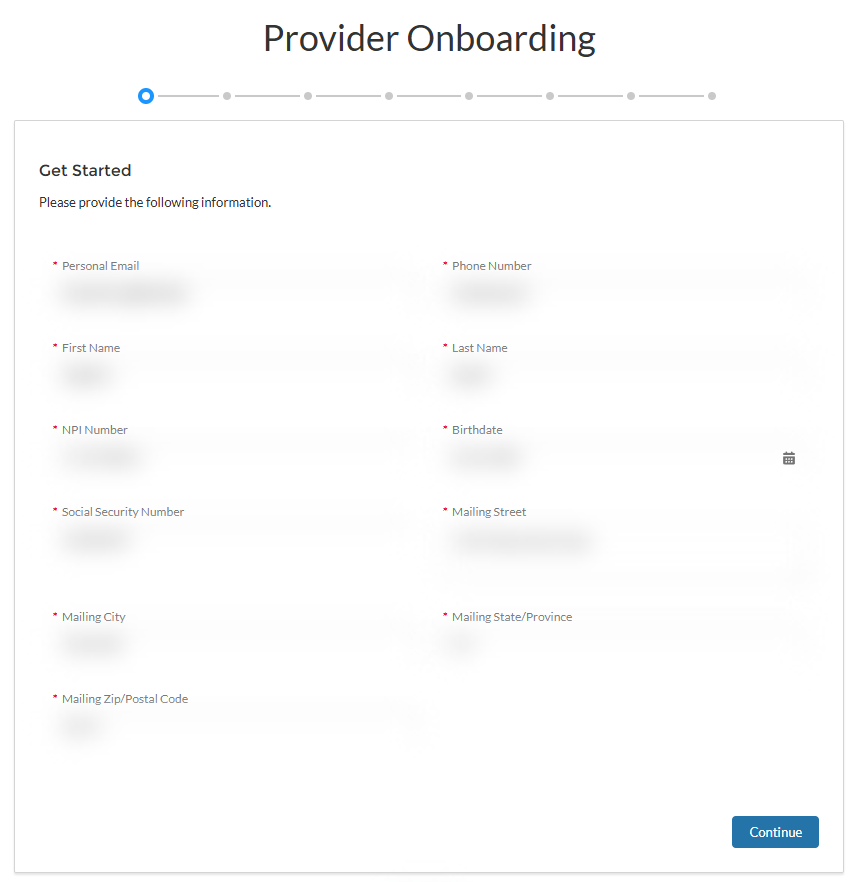
Step 2: Verify Your Information
Confirm your Nourish email is displayed. Please only update Personal Email if your non-Nourish email is displayed on this screen.
Enter your Phone Number, First Name, and Last Name.
Enter your NPI Number and Birthdate.
Enter your Social Security Number.
Enter your Mailing Address (Street, City, State, Zip/Postal Code).
Click Continue.
Step 3: Add Board Certification
You should now be on the Board Certification page.
Click Add.
Confirm that Commission on Dietetic Registration is listed under Type. If not, select it.
Enter your CDR Certification Number.
Enter your CDR Expiration Date.
Click Confirm, then Continue.
Step 4: Enter Aliases
You should now be on the Other Aliases page.
If you have any aliases that meet the listed criteria, click Add and complete the fields.
Click Continue.
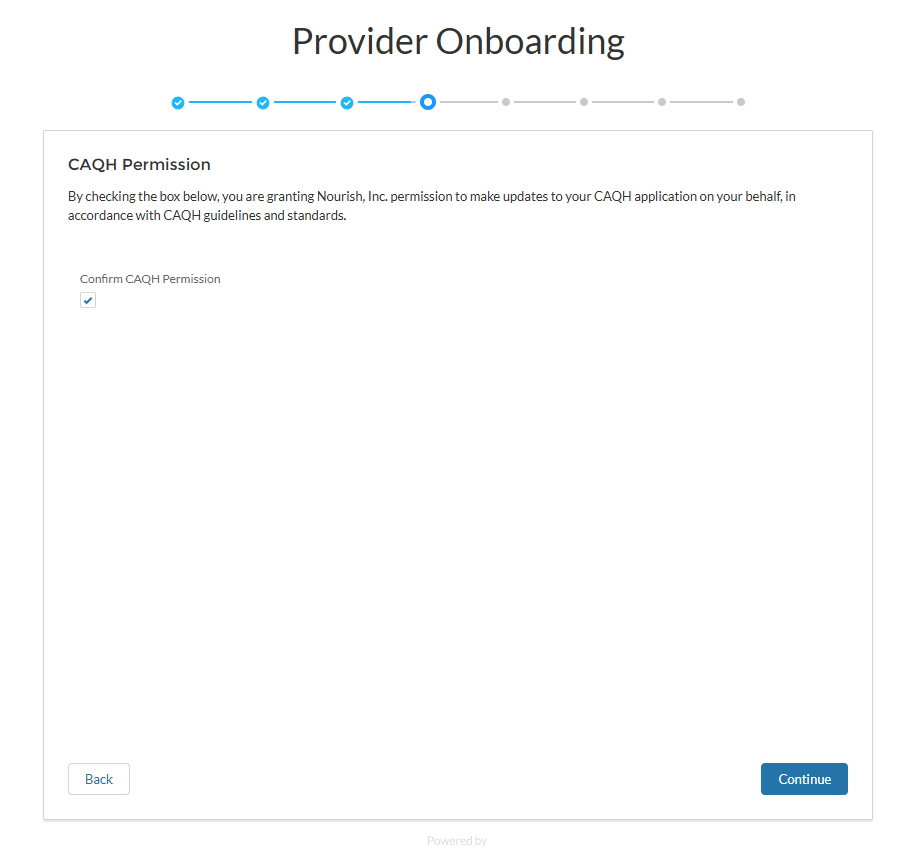
Step 5: CAQH Permission
You should now be on the CAQH Permission page.
Opt in here if you’d like Nourish to manage your profile updates.
Click Confirm CAQH Permission, then Continue.
Step 6: Enter CAQH Information
You should now be on the CAQH page.
Enter your CAQH Username, CAQH Password, and CAQH ID.
Click Continue.
Step 7: Upload Required Documents
You will upload three documents — resume, NPDB report, and signature file.
Upload only one document per step (e.g., resume in the Resume step, then NPDB in the NPDB step).
Upload Resume → Click Upload Files, then Done, confirm the upload, click Continue.
Upload NPDB Report → Click Upload Files, then Done, click Continue.
Upload Signature File → Click Upload Files, then Done, click Continue.
Step 8: Submit Form
You should now be on the Submit step.
Click Submit to submit your Onboarding Form.
You will see confirmation that Your onboarding form has been successfully submitted.
Status will display as Completed.
