Sign into Zoom
Estimated completion time: Less than 5 minutes
Click here to sign in to Zoom via SSO.
You can join Zoom calls directly from the Provider Portal! You will see a “Join Zoom” button on the row of the appointment, 20 minutes before the appointment starts, through the end of the appointment.
Before your first session, please log into Zoom using Single Sign On (SSO). Instructions are below; just make sure you’re logged in to your Nourish email in the relevant browser.
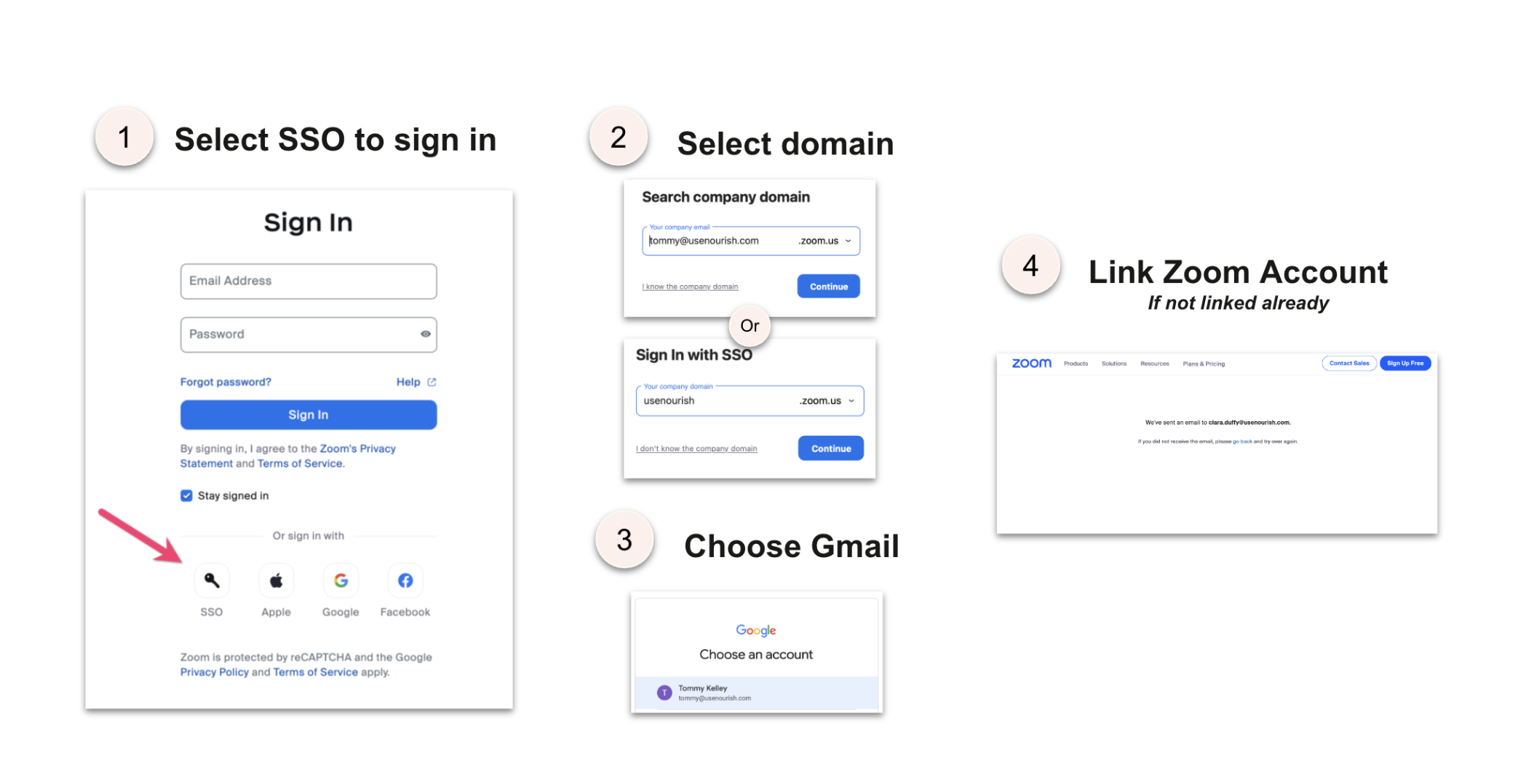
Your Zoom will not be a premium account, but rest assured, you will be able to hold sessions for the full 55-minute duration without a time cap.
While not required, you may wish to download the Zoom app on your computer—this way, you can minimize the Zoom window and still see the patient while charting, without having to navigate between tabs.
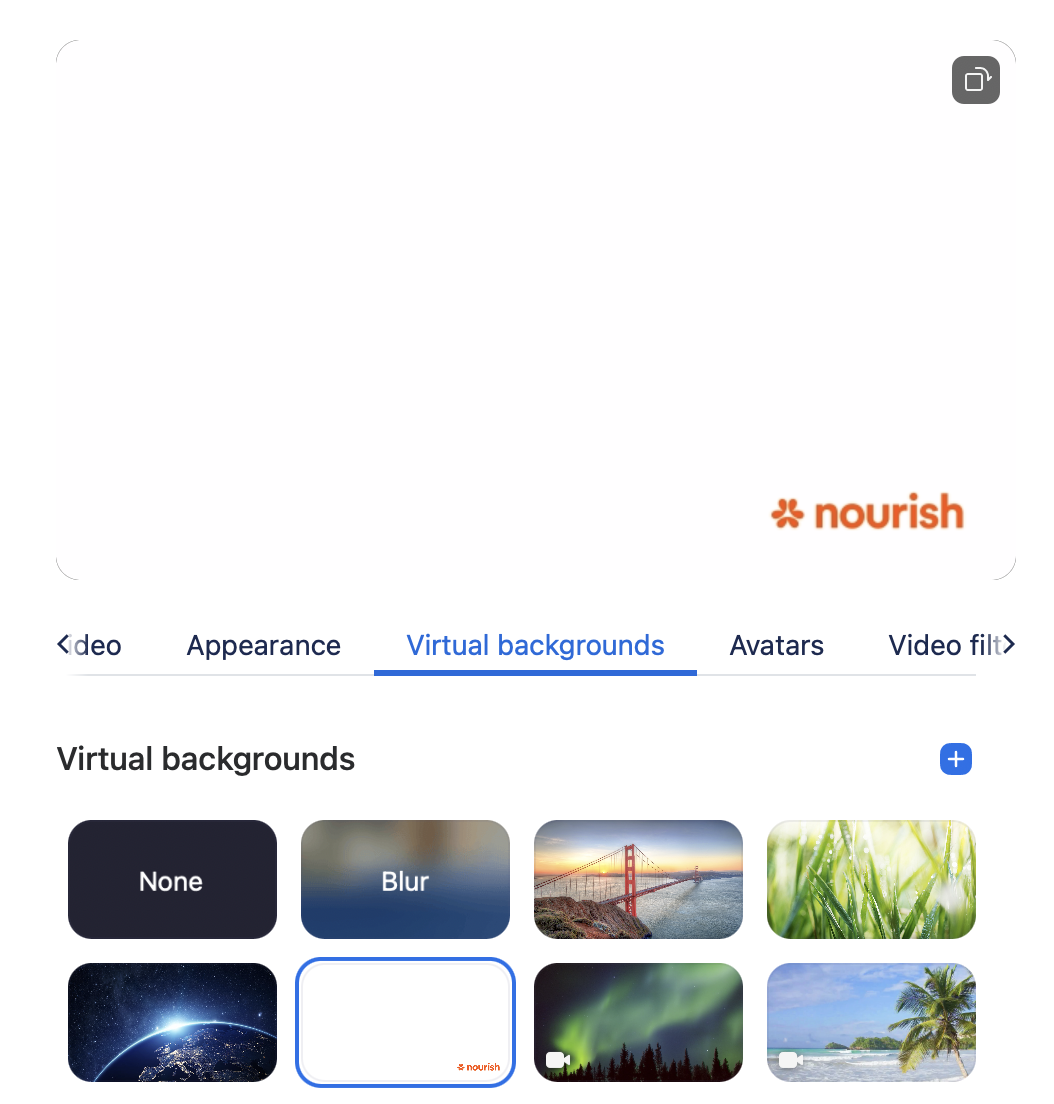
Optional: Nourish-branded Zoom background
If you’d like to use our Nourish-branded Zoom background, you can find it already included in your 'Virtual backgrounds' library in Zoom.
Please note that if you choose to mirror your video preview, you will see the background backwards; however, it will display correctly to meeting attendees and patients.